


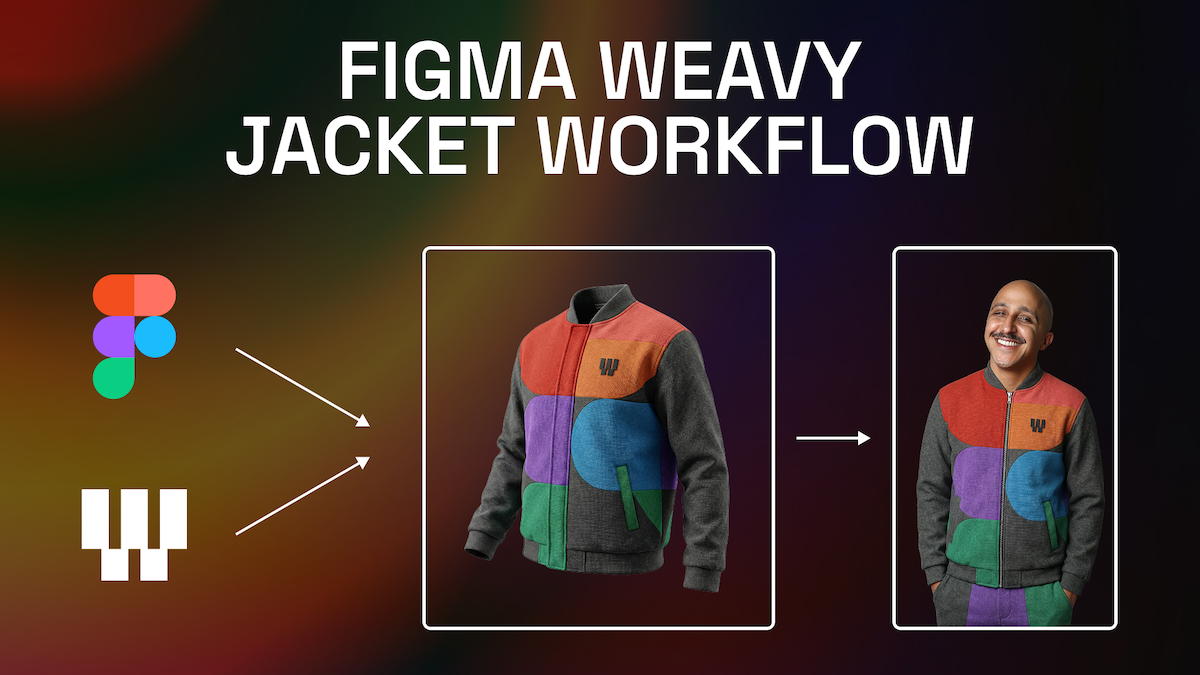
A small brand needs new product images every week. A lifestyle shot for Monday, a seasonal variant for Wednesday, a vertical crop for the story, a clean packshot for the marketplace. Hiring a studio for each one does not fit the budget, and doing it all in a chat window gives results that never quite match.
Workflow-based product image creation is the middle path. You build the process once, as a chain of steps, and then run new products through it. This post explains what that means, which tools do it, and what a small brand should ask for.
What is a workflow in this context?
A workflow is a saved chain of steps. Each step does one job: take the product photo, place it in a scene, apply the brand's look, crop for each channel, export. The steps are connected on a canvas, so the same chain runs every time.
Several tools work this way. Figma describes Weave as a place to connect generation with retouching, color correction, compositing and lighting, and says you can "build a pipeline once and run it across your full catalog" (Figma). ComfyUI is the open-source option that runs on your own GPU; a hosted version also exists. Magnific documents a way to bring your own ComfyUI workflows into its Spaces canvas, where they keep running on your own machine (Magnific docs). These are vendor descriptions, so test them on your own products.
Why does a workflow beat one-off prompting?
Consistency. A prompt typed fresh each time gives you a different light, a different color and a slightly different bottle. A workflow fixes the parts that must not change: the product reference, the palette, the lighting direction, the crop sizes. Only the parts that should change, such as the scene or the season, are left open.
It also saves time on the boring part. The person running the workflow does not need to know how the chain was built. In a comparison of the two tools, one writer notes that a finished Figma Weave workflow can become a simple tool colleagues run without seeing the node graph (Wireflow). That is the shape small brands should look for.
Which tool should a small brand pick?
It depends less on the tool than on who will run it.
- No technical person on the team: a hosted tool that runs in the browser, with no installs and no model files, is usually the easier start.
- Someone technical, or an agency helping: ComfyUI gives more control over models, at the price of setup and upkeep, including a capable GPU or a hosted plan.
- Already working in a canvas tool: a workflow inside that tool keeps files and approvals in one place.
Prices and plans change often, so check the vendor's current page before you commit.
What does a studio add?
A workflow is only as good as the inputs. In our experience of the last year of production with AI imagery, three things decide the result, and none of them is the tool.
First, the product reference. If the product photo or 3D render is not accurate, every image downstream inherits the error. We often build or retouch that reference before anything else.
Second, the look. Someone has to decide what "on brand" means in concrete terms: the palette, the light, the backgrounds that are allowed. We turn the brand guidelines into locked settings. Our article on how node-based AI workflows are changing product content shows what that looks like for beverage and supplement brands.
Third, the check. Someone looks at the output before it is posted, because AI will occasionally change a label, a logo or a shape.
What should you scope before you commission one?
- Inputs: how many products, and what reference material exists.
- Outputs: which image types and which sizes per channel.
- Look: what is locked, and what the team may change.
- Who runs it: the interface should have only the few inputs they need.
- Ownership: who owns the workflow file and the accounts it runs on.
- Running cost: most hosted tools charge by credits or usage, so ask for an estimate per batch.
- Review: who approves images before they go live.
What can go wrong?
Three things, in our experience. First, drift: a hosted tool updates its model, and the same workflow suddenly gives a slightly different look. Keep a folder of approved reference outputs and rerun them after any tool update. Second, hidden dependencies: the workflow relies on one person's account, one machine or one custom node, and stops when that changes. Write down what it needs to run. Third, over-building: a graph with forty steps that nobody understands is harder to maintain than ten clear ones.
None of these is a reason to avoid workflows. They are reasons to keep the first version small and documented.
Practical takeaway
Start with one product line and one channel. Build the workflow, run twenty images through it, and see what breaks. Fix the reference and the locked settings, then widen. A small, reliable chain is worth more than a large clever one.
If you want a workflow built for your own catalog, you can see our work at 35milimetre.com.