

Most video problems we see are not creative problems. The idea is fine, the edit works, but the footage lets it down: it was shot at 1080p and now needs to run at 4K, a bright screen blows out half the frame, or the client wants one thing in the shot to look completely different and there is no budget to reshoot.
This is where AI video enhancement has become genuinely useful in our post-production work. Not as a magic button, but as a set of tools that can upscale, restore, regrade and even rebuild parts of a shot while keeping what already works. In this article we walk through what these tools can actually fix, the ones we use in production, two real examples from client work, and where a human still has to step in.
We have been working with AI imagery and video for about the last year, on top of 26 years of retouching and compositing. That background shapes how we use these tools: we treat AI output like any other plate that needs checking, matching and finishing.
What can AI video enhancement actually fix?
It helps to split the work into three jobs, because each one uses different tools and carries different risks.
Improving what is already there. Upscaling, sharpening, noise reduction, smoother frame rates. The goal is the same shot, just cleaner and larger. Nothing new should appear in the frame.
Correcting light and color. Taming a hot screen, lifting a subject lost in shadow, matching shots from different cameras. This is classic color grading, but AI now makes local fixes much faster to isolate and track.
Changing what is in the shot. Swapping a product, restyling a background, replacing an object, while the camera move and the action stay the same. Until recently this meant a reshoot or heavy compositing. Video-to-video models have made it a realistic option for short clips.
The first job is the safest. The third is the most powerful and the one that needs the most supervision.
Upscaling and restoration: Topaz and Magnific
For upscaling and cleanup, we mainly use two tools, and the choice between them depends on how much "invention" a shot can tolerate.
Topaz Video
Topaz has been the reference tool for video upscaling for years, and it keeps adding models. In its May 2026 release, the company introduced Hyperion 2, a model that converts SDR footage to HDR while upscaling, and a Premiere Pro panel that sends media to Topaz's cloud processing without leaving the timeline. It also widened access to its earlier models such as Starlight.
In practice, Topaz is our first stop when the brief is "same shot, more resolution, less noise." It is predictable, and predictable is what you want when a brand's product or a person's face is on screen.
Magnific video upscaler
Magnific offers two clearly separated modes, and that separation is the most useful thing about it. According to Magnific's own documentation, Precision mode upscales up to 4K while keeping composition, textures, motion and color as close to the source as possible. Creative mode generates new detail and can repair artifacts, warped faces and flicker, which makes it better suited to low-resolution or damaged footage and to AI-generated clips with defects. There is also an optional FPS Boost that doubles the frame rate, for example from 24 to 48 fps.
Magnific is honest about the trade-off: Precision cannot fix defects in the source; it just reproduces them at a higher resolution. Creative can fix them, but it does so by inventing pixels. That is exactly the decision we make shot by shot. Product close-ups and faces usually go through the conservative route. Backgrounds, textures and stylized shots can take more creative enhancement.
Changing the shot without reshooting: Seedance
The most interesting change of the past year is video-to-video editing. With Seedance 2.0, you feed in the original clip as a reference and describe the change you want. The model rebuilds the shot with the new content while following the original camera movement, timing and composition.
A Seedance 2.0 workflow guide from Luma shows this with a simple example: replacing a car with a motorcycle while preserving the camera angle, lighting, background and motion path. The same guide recommends keeping each edit focused on one major change, which matches our experience closely.
We use this in two ways:
The limits are real. Clips are short, so longer sequences are built and joined in pieces. Fine details such as logos, small text and product labels can drift between frames, and faces can shift slightly. That is why we rarely deliver a raw video-to-video result. The usual pipeline is generate, select the best take, then fix and composite the critical elements, often putting the real packshot or label back over the generated version so it stays exact.
Example: complex color grading for Fuzion Gamz
A good example of the "light and color" job came from a project for Fuzion Gamz. The footage showed kids in front of large, bright screens. The problem was a classic one: the screens were far too bright, and the kids, lit mostly from behind, were too dark. A global grade could not solve it. Pulling the screens down made the kids even darker, and lifting the kids blew the screens out completely.
The fix had to be local. The screens and the kids needed to be treated as separate regions, held cleanly through the movement in the shot, and then balanced against each other so the scene still felt natural. AI-assisted isolation makes this kind of work far faster than drawing and tracking every mask by hand, but the judgment is still a grading decision: how much to tone down the screens before they look fake, and how far to lift the kids' backs before the lighting stops making sense.
We worked through it in test rounds. After the client's feedback on the earlier versions, the third test was approved and became the reference for the full section. Working in short, reviewable tests like this is the most reliable way we have found to align with a client on something as subjective as light.
Example: fast text edits on the Unplugs × Live Nation film
AI in video editing is not only about pixels. Some of the biggest time savings come from letting AI handle the mechanical side of an edit.
Near the end of the Unplugs × Live Nation campaign film, the client asked for one last change before final approval: add a missing line of on-screen text at a specific timestamp, using the same animation effect that already appeared later in the video. A small request, but the kind that usually means opening the project, finding the existing text layer, duplicating it, matching the effect settings, retiming it and exporting a new version.
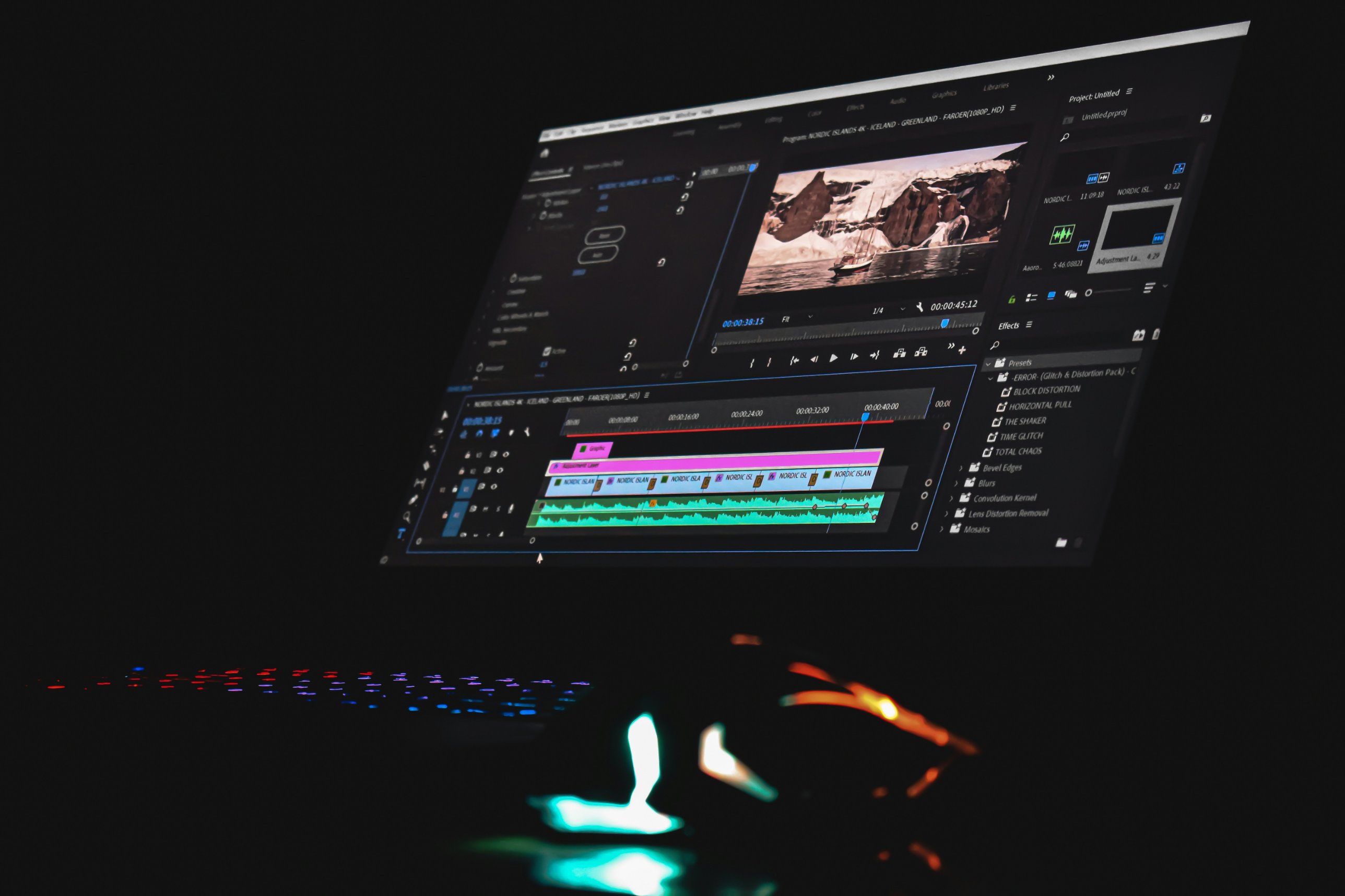
We handled it with Claude connected directly to Premiere Pro. Instead of clicking through the timeline, we described the change, Claude located the existing text and effect in the project, applied the same treatment to the new line at the right time, and prepared the update. We still reviewed every frame of the result before sending it, but the turnaround on a last-minute change dropped from a working session to a short check.
This matters more than it sounds. Late changes are where deadlines slip. Being able to turn them around quickly, and accurately, keeps the client's launch schedule safe.
Where AI enhancement still needs a human
The tools are impressive, but the results are only as good as the decisions around them. A few things we always watch:
Our role sits in exactly this space. Retouching and compositing have always been about making images believable and on-brand; AI adds new ways to get there, but the finishing standard does not change.
If you are working with AI-generated clips specifically, our earlier article on 3D-referenced AI video covers how we keep product shape and motion under control from the start.
Practical takeaway: how to get the best results from AI video enhancement
If you have footage that needs improving, a few things make a big difference:
AI video enhancement will not turn every weak shot into a strong one, but it has changed what is possible with footage you already own. Upscaling, regrading and rebuilding shots that would once have needed a reshoot are now realistic options when they are handled with care. If you have footage that is not quite where it needs to be, take a look at our work at 35milimetre.com and tell us what you are trying to fix.